Showing posts with label VM. Show all posts

Monday, June 4, 2012

8-way VM on ESX 4.1 - Win2k8 R2 Standard edition

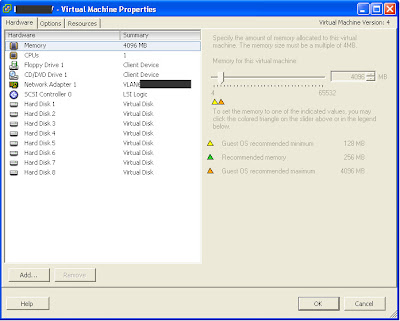
Today, I had to configure a VM with 8 vCPU's on an ESX 4.1 cluster. The guest OS was Windows Server 2008 R2 Standard Edition. However, after configuring the VM with 8 vCPU's it still only registered 4 vCPU's in the guest OS.

The reason is that both Win2k3 and Win2k8 R2 standard edition only can be configured with four physical CPUs or sockets. By default vSphere 4.0 and 4.1 presents 1 vCPU as one socket.

To bypass this, there is a feature (experimental in 4.0 but supported in 4.1) allowing you to configure multiple cores per socket. See this KB article. This feature has been included in vSphere 5.0 in the GUI.

See this article for comparison of Windows 2003 editions.

See this link for comparison of Windows 2008 edition (look for 'Editions Guide' at the bottom of the page). Or download PDF here.


Tuesday, April 17, 2012

Could not power on VM - lock was not free

The other day we experienced an incident on the SAN storage with high latency and even loss of connection to the SAN. This can generate a lot of really unpleasant errors on the ESX hosts. Even after the SAN is brought back to a stable state we've seen hosts that won't boot, VM's that won't vMotion and VMs that won't power on due to file locks. 

If you receive a 'locked file error' (like screendump below) and your VM won't boot there are a couple of ways to go about it. This VMware KB article explains it quite well. Either you can cold migrate the VM to the  other hosts in the cluster (to find the ESX host with the lock) and then try to boot it from there or you can try to locate specifically which host has the lock.


If the vCenter log does not tell you specifically which files are locked, this can be viewed in the vmware.log which is located in the VM folder. If you just tried to power on the VM, then relevant info should be at the end of the log file.

In the example below, it is the swap that is still locked.


This can be verified by running the touch command on the locked file.
With vmkfstools you can get the mac address that has the lock:

# vmkfstools -D /vmfs/volumes///


In the screendump below, the MAC address has been highlighted.


The same info can be found in the /var/log/vmkernel log


Once you have the MAC address you can find a match by, for example, logging in to vCenter or onto the Blade enclosure. When you have a match, cold migrate the VM to the relavant ESX host and boot it.

Wednesday, December 7, 2011

VMXNET 3: Supported Guest Operating Systems

VMXNET 3 is the newest NIC driver for VMs (requries VM HW v7). It should be chosen as default for all supported guest operating systems. Windows Server 2000, however, is not supported. Here's link to VMware KB with more info. Remember, that when you delete the old NIC and add a new one, then all IP info is wiped and should be reconfigured (mostly relevant for static IPs).


Monday, February 15, 2010

Howto: Installing VMware tools in a Linux VM

Installing VMware tools in a Linux VM take a few more steps than on a Windows VM. This is done the following way (tested on VMware Workstation 7 and Ubuntu Desktop 9.04 VM appliance).
  • install the guest OS (click here to see if guest OS is supported)
  • to exit the gui to simulate no X server: sudo service gdm stop and then alt+f1 to get console
  • right click the VM and choose install/update VMware tools. This will connect the cdrom with the VMware tools ISO file (if files are not already available, they will be downloaded) but you still need to mount the cdrom manually: sudo mount /dev/scd0 /media/cdrom (if folder don't exist, create it first)
  • copy the tar file to /tmp folder and untar it: tar -xvf VMware-tools-vXX.tar.gz
  • ls to the untar'ed folder and run vmware-install.pl: sudo ./vmware-install.pl
  • start the gui: sudo service gdm start or simply startx
  • verify that VMware tools are running: sudo ps -auxwww 'pipe-symbol' grep vm (look for /usr/bin/vmtoolsd and you will also find the balloon driver vmmemctl). You can also check if the vmtools startup script has been put into the startup folder /etc/rc0.d/
link to VMware KB article on installing VMtools (alternatively this KB article)

Update 2011.10.28: When installing VMware tools in Linux Redhat Enterprise 5.6 the installation failed as it needed gcc and some kernel developer packages. I ran the following commands and then reran the tools installation again after ./vmware-install.pl:


yum install gcc
yum install kernel-devel
yum install kernel-xen-devel


Friday, September 11, 2009

Howto: Removing a disk from a VM - howto identy the right disk?

From time to time, we need to remove disks from a VM. If there's only two or three disks attached to the VM, it's typically not a problem figuring out which one to remove e.g. if the disks have different sizes. But if you have seven or eight disks and they are the same size, then it's a bit more tricky - let's say if you're asked to remove the 'E-drive'. Under 'Edit Settings' for the VM, the disks only have a number which does not necessarily correspond with anything within the VM.

So how to identify exactly which disk that corresponds with a given volume within Windows?


The match can be made by looking at the SCSI target ID for the disk - this can be identified both in WIndows and under 'Edit settings' for the VM (A VM can have four SCSI controllers with up to 15 disks on each controller, so a maximum of 60 disks per VM).

To identify SCSI target ID within the VM:
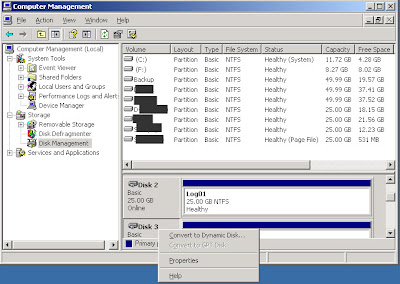
Go to Computer Management -> Disk Management
Right click a disk and choose Properties


On the General tab you will see the Bus number (SCSI controller) and the Target ID (SCSI target ID), note the number - in this case below the ID is 4.


To identify SCSI target ID from the VI client:
Now go to 'Edit Settings' for the VM under and locate the disk with the corresponding target ID (see Virtual Device Node for the disk). Make sure the that the controller number and SCSI ID is the same. In this case it is Hard Disk 5 that have SCSI ID 4.

Shut down the VM to remove the disk.

Monday, April 13, 2009

Howto: Power off or kill a VM that is stuck

If you have a VM that is stuck and you can't power it off via Virtual Center, then here's some usable commands for troubleshooting and killing the VM from the Service Console:

Show running VM's:

vm-support -x
vmware-cmd -l

See the current state of a VM:

vmware-cmd /<path-to-vmx-file> getstate

Show running processes related to a given VM:

ps -auxwww grep <name-of-VM>
(Remember the 'pipe' character before grep-command - I can't display here...)

If you see an 'S' next to the process, then it can be killed. If it's a 'D', then the process is defunct and you may have to reboot the ESX server to kill the process.

Kill the proces, and thereby the VM:

kill -9 <process id>


Links to relevant threads:

http://communities.vmware.com//message/1219151#1219151

http://communities.vmware.com/thread/87797