Sunday, November 22, 2009
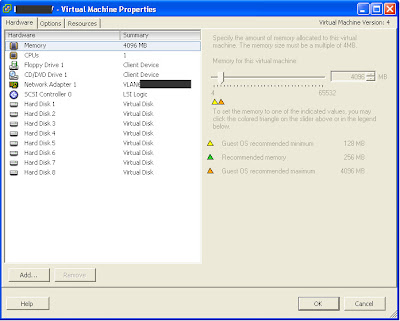
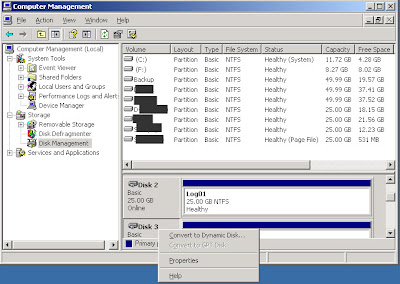
VLAN testing in ESX 3.5
Saturday, November 14, 2009
Howto: Using Find command in Service Console
Wednesday, October 14, 2009
Howto: Permission wars in VI3
Virtual Machine.Inventory.Remove (otherwise one can’t delete VM from disk)
Virtual Machine.Configuration.Add New Disk
Datastore.Browse Datastore (to be able to browse datastore from VM summary view)
Datastore.Browse Datastore
Datastore.File Management
Virtual Machine.Inventory.Create
Virtual Machine.Inventory.Remove
Virtual Machine.Inventory.Move
Virtual Machine.Interaction.Power On
Virtual Machine.Interaction.Power Off
Virtual Machine.Interaction.Reset
Virtual Machine.Interaction.Answer Question
Virtual Machine.Interaction.Console Interaction
Virtual Machine.Interaction.Device Connection
Virtual Machine.Interaction.Configure CD Media
Virtual Machine.Interaction.Tools Install
Virtual Machine.Configuration.Rename
Virtual Machine.Configuration.Add Existing Disk
Virtual Machine.Configuration.Add New Disk
Virtual Machine.Configuration.Remove Disk
Virtual Machine.Configuration.Change CPU Count
Virtual Machine.Configuration.Memory
Virtual Machine.Configuration.Add or Remove Device
Virtual Machine.Configuration.Modify Device Settings
Virtual Machine.Configuration.Settings
Virtual Machine.Configuration.Change Resource
Virtual Machine.Configuration.Reset Guest Information
Virtual Machine.Configuration.DiskExtend
Virtual Machine.State.Create Snapshot
Virtual Machine.State.Revert to Snapshot
Virtual Machine.State.Remove Snapshot
Virtual Machine.State.Rename Snapshot
Virtual Machine.Provisioning.Customize
Virtual Machine.Provisioning.Clone
Virtual Machine.Provisioning.Create Template From Virtual Machine
Virtual Machine.Provisioning.Deploy Template
Virtual Machine.Provisioning.Clone Template
Virtual Machine.Provisioning.Mark as Template
Virtual Machine.Provisioning.Mark as Virtual Machine
Virtual Machine.Provisioning.Read Customization Specifications
Virtual Machine.Provisioning.Allow Virtual Machine Download
Virtual Machine.Provisioning.Allow Virtual Machine Files Upload
Resource.Assign Virtual Machine to Resource Pool
Resource.Migrate
Resource.Relocate
Thursday, October 8, 2009
Howto: Check if SAN cables are connected in ESX
Friday, September 11, 2009
Howto: Removing a disk from a VM - howto identy the right disk?


Saturday, June 20, 2009
Howto: Getting the Navisphere Agent for ESX Server
The agent is not publicly available for download. If you have a partner login, then I believe you can download it at http://powerlink.emc.com/ .
The way to go to get the agent is via your storage department. Either they can get the login for you or have them contact EMC, then they will send the software. Navissphere is shipped together with the Clariion storage systems on the Navisphere Server Support CD (see this article page 16). But contact EMC if you want to be sure to have the latest version.
In this document on page 7, it is stated that Navisphere v6.22 is compatible with ESX v3.5
Saturday, June 6, 2009
Howto: 101 Scripting ESX server installation on vSphere 4
First off, I recommend that you download the ESX and vCenter Server Installation Guide and read pp. 43-58 on scripting installations. This documentation helped me to get started more than posts on the web.
On ESX 4, there are two built-in scripts that you can run when you boot the installation CD: 'ESX scripted install to first disk' and 'ESX scripted install to first disk (overwrite VMFS)'. But that's a little boring as these scripts can't be modified.
Wednesday, May 6, 2009
Howto: Network configuration from the Service Console
If you have screwed up your network configuration and you have lost the connection to your ESX host, here's a couple of commands to configure the network settings from scratch (alternatively, you can try the new console-setup tool that has been introduced as of ESX4.0 U2).
First, delete the service console port group (the vswif) and then delete the virtual switch (typically vSwitch0) so you can start from scratch:
esxcfg-vswif -d vswif0
esxcfg-vswitch -d vSwitch0
(To remove a vMotion portgroup named vMotion: esxcfg-vswitch -D vMotion vSwitch0. If you have an active vMotion portgroup you may recieve the following error when trying to delete the vSwitch: Failed to remove portgroup: vMotion, Error: Unable to delete portgroup "vMotion", for the following reasons: 1 active ports, VM Kernel NIC. In that case, use esxcfg-vmknic to delete active NIC: esxcfg-vmknic -d -p vMotion)
Then create a new vSwitch, attach one or more pnics, add a service console port group (vswif), and configure and ip address for the service console:
esxcfg-vswitch -a vSwitch0
esxcfg-vswitch -L vmnic0 vSwitch0
esxcfg-vswitch -L vmnic1 vSWitch0
esxcfg-vswitch -A 'Service Console' vSwitch0
esxcfg-vswif -a -i 10.44.12.2 -n 255.255.248.0 -p 'Service Console' vswif0
Check your results with:
esxcfg-vswif -l
esxcfg-vswitch -l
Edit the host IP address in the /etc/hosts file (use: #nano -w /etc/hosts)
service network restart
For changing the default gateway, edit the /etc/sysconfig/network file. Or use the command:
See which physical nics are connected to a switch
This command can be handy if you're not quite sure which of your physical nics have in fact been cabled to a switch:
esxcfg-nics -l
Retrieve CDP (Cisco Discovery Protocol) info from service console
With this command you can access CDP info from the COS. This is useful if, for example, your network department has not trunked the proper VLANs through and they want to know exactly which switches and ports are connected to your ESX host.
vmware-vim-cmd /hostsvc/net/query_networkhint more
(insert 'pipe' before the 'more' command, I can't display it here)
look for the following lines:
device = "vmnic0"
devId = "switchname.bla.com"
portId = "GigabitEthernet9/28" (if it says FastEthernet or just Ethernet it is a 100 Mbit and 10 MBit port and the cable should be changed to a Gigabitethernet port)
Monday, April 13, 2009
Howto: Power off or kill a VM that is stuck
Show running VM's:
vm-support -x
vmware-cmd -l
See the current state of a VM:
vmware-cmd /<path-to-vmx-file> getstate
Show running processes related to a given VM:
ps -auxwww grep <name-of-VM>
(Remember the 'pipe' character before grep-command - I can't display here...)
If you see an 'S' next to the process, then it can be killed. If it's a 'D', then the process is defunct and you may have to reboot the ESX server to kill the process.
Kill the proces, and thereby the VM:
kill -9 <process id>
Links to relevant threads:
Sunday, April 12, 2009
Howto: Extend system partition with Diskpart
Here's a workaround for extending the system or boot partition with diskpart (this will only work if the c-drive is the only partition on the .vmdk file). The logic of it is to take the whole .vmdk file and attach it to another VM as a second disk. This way Diskpart will let you extend a system partition:
1. Shut down the VM on which you whish to extend c-drive (c-drive-VM)
2. Create a new temporary VM (temp-VM)
3. Create a new disk on the temp-VM and choose 'Attach existing .vmdk file'. Browse for the .vmdk file of the c-drive-VM
4. Edit settings for the temp-VM and chose the newly added disk and resize it to new size.
5. Boot temp-VM and extend using Diskpart (you may need to assign a drive letter to disk in Disk Management)
6. Shut down temp-VM
7. Delete disk from temp-VM
8. Now the disk has been extended but it c-drive-VM it still shows as the original size. Therefore, delete the disk from c-drive-VM and add it again. This way, the correct disk size will show.
9. Boot c-drive-VM. Done.
Now, maybe this is not a super elegant way to go about it, but if you have a temp-VM ready then it's probably a little quicker than using the old way...
Friday, April 10, 2009
Configuration of iSCSI in VMware VI3
The purpose of this post is to describe how to configure an iSCSI SAN in a VMware virtual infrastructure 3.5 with software initiator.
The prerequisites for this instruction are that the network and storage system has been configured and that you have received the following information:
ESX Hosts
- ILO IP and credentials
- IP address for ESX host
- IP address for VMotion
- FQDN for the ESX host (should be able to resolve)
- Is ethernet traffic VLAN tagged (then you need VLAN ID) or is it only access ports?
- Subnet, gateway, DNS servers
- IP addresses for the storage targets (typically 2 or 4 targets)
- IP address for the Service Console on ESX
- IP address for VMkernel (iSCSI) on ESX
- Subnet and gateway
- Make sure a LUN is made available by storage group
Furthermore, ensure that you have two separate NICs in the ESX host that can be used for storage. So, if it’s a Blade, then 4 NIC’s for Ethernet traffic and the two last on mezzanine card 2 for storage. The NICs can be of any type and make since the iSCSI initiator is software based and controlled by ESX on top of the NIC.
Instruction steps
0. First, below is a typical storage architecture:
1. In VI client: Make sure the ESX server is licensed for iSCSI and VMotion under Configuration -> Licensed features
2. Under Configuration -> Networking add a new virtual switch that will be used for storage. Attach the NIC’s you want to use.
3. Click properties for the new vswitch and add a Service Console 2 (COS2). Give it an ip address and subnet (typically local ip.). This second service console will receive the gateway of the first Service Console (a routable gateway ip). This is fine as it is not to be used in COS2.
4. Click properties for the new vswitch and add a VMkernel which will be used for iSCSI traffic. Label it iSCSI. Type in ip address and subnet.
After VMkernel is created enter properties for it and enter VMkernel Default gateway. This gateway ip should be the same as the IP address of COS2. So VMkernel points its gateway to the local service console.
Do not tick the box for VMotion use.
5. When done, the network configuration could like dump below: 6. Make sure the vmkernel has a gateway under “DNS and routing”
7. Go to security profile and enable software iSCSI client through the firewall:
8. Go to configuration -> storage adapters and click on the vmhba and click “properties”
10. On the Properties page for the software iscsi adapter, choose the Dynamic Discovery tab and enter the ip addresses of the storage targets (static targets are not supported for software initiators.)
11. Now, from the storage adapters page, rescan the HBA’s and verify that you see 2 or 4 targets (storage targets)
12. From Configuration -> Storage add the new LUN or LUN’s
For a MSA2012i with two Storage Processors (SP’s) with each to ports, there will be 4 targets (Update: In 3.5 U3 I've seen same setup but only two visible targets - but live SP fail-over works fine still). There will be 2 paths (typically on Fiber HBA’s, there are 4 because each HBA is represented with each two paths). With software initiator, there is one logical initiator and then two physical NICs teamed in the vSwitch. The initiator has two paths to two targets on the same SP.
- Make sure that all targets can be pinged from COS2. SSH to the ESX host. From the console, SSH to COS2. From there you can ping the targets
- If it’s a HP Blade 3000/7000 enclosure, make sure connections between the two switches used for storage are allowed (done by network department)
- Jumbo Frames: If you are to enable it, remember to change it on all relevant parts: Storage, Network, ESX (on Switch and Port groups). Jumbo frames are not necessarily supported by the physical NIC’s. on the BL460cG1, the built-in NIC’s are supported but the HP NC326m, for example, is not. To enable jumbo frames from console, type following two commands:
VMkernel command: esxcfg-vmknic -a -i 'ip-address vmkernel' -n 'netmask vmkernel' -m 9000 'portgroupname'
vSwitch command: esxcfg-vswitch -m 9000 'vSwitchX' - Check outgoing ESX traffic: From the console, you can, when you rescan for new HBA’ and VMFS volumes, check if there is any traffic from the ESX to the targets (run command simultaneously with rescan)
- Netstat –an grep 3260
[root@vmtris001 root]# netstat -an grep 3260